Salesforce relationship mapping
Turn your Salesforce relationship map into better prepared conversations
A relationship map in Salesforce displays everyone who has a hand in an account or a deal, and how each person fits in. This guide includes the native tools that create the map, a stakeholder template for you to copy, and how to turn each name on the map into a conversation ready to go. WhiteBridge does not draw maps. It researches the people on them.
What a Salesforce relationship map is for
A relationship map provides one straightforward answer to who's involved, how they're connected, and where the support or risk lies. Salesforce's out-of-the-box version is the Buyer Relationship Map, available in Lightning Experience in Enterprise, Performance, and Unlimited editions with Sales, as well as Agentforce 1 Sales Edition. You start it from the account or opportunity action menu. It groups contacts by Department Group and Seniority Level, and each tile can include Buyer Attributes like Decision Maker and Detractor.
All the native features paint the same picture. The Reports To field builds the contact hierarchy. The account hierarchy shows parent accounts and subsidiaries. Contacts to Multiple Accounts connects one individual to many companies. Opportunity Contact Roles note the role everyone played in the deal. Third-party org chart and relationship map apps on AgentExchange, the marketplace formerly called AppExchange, include their own diagrams and coverage techniques. All of them show who's out there. None of them tell you what an individual cares about, and how to open the next conversation.
How to build the map in Salesforce
Begin with the records - don't begin with the map. A map is only as good as the contacts that built it, so the majority of the work for many reps is first getting the account and opportunity records right - even before tiles appear. The steps below mirror the native data elements, in the order they are most commonly used by a rep.
- Add every known person as a contact to this account. If a person works across multiple companies (for example a group executive or an advisor), you can use Contacts to Multiple Accounts instead of creating a duplicate contact.
- Complete the Reports To field anywhere you know the reporting line. The contact hierarchy is derived from there and will only contain one individual if it is left blank.
- Set Seniority Level and Department Group on each contact. Buyer Relationship Map displays only those contacts with both values; all others remain in Incomplete Contacts.
- Set Buyer Attributes (such as Decision Maker or Detractor) only if the individual, or a colleague, has confirmed it in a meeting or in writing.
- Use the insights on the opportunity map to see what important seniority levels and department groups are still absent - then figure out who to meet next.
The map and contact roles interact on an opportunity. You can add a contact role for a person not yet on the deal from the side panel, and that individual will be listed under Incomplete Contacts until their level and department have been set. Our guide to Opportunity Contact Roles discusses best practices on which roles to choose and how to keep them up-to-date. Keep your Role picklist as concise as possible - a role that nobody on the team can define is worse than a blank role.
As you start to build, remember one thing - WhiteBridge does not plot the map, does not establish Seniority Level or Reports To and does not add people into your accounts. That's for the Salesforce map or the map app you already have. WhiteBridge is the next step after you've built the map, when a rep is choosing one person on the map and wants to know what makes that person tick.
Stakeholder template and example
Positions on the map. This is your profile template. It notes what you know about each person and how you came to know it. It has 6 columns (person, confirmed role, fact, source, question, next conversation). Leave it with the opportunity in a rich text field, or a note on the record, or a shared sheet connected to the record, one person per row of the map.
| Person | Confirmed role | Fact | Source | Question | Next conversation |
|---|---|---|---|---|---|
| Nora Belmayne, Head of Procurement | Evaluator, runs the vendor shortlist (confirmed on discovery call, 14 Oct 2026) | Wrote that supplier onboarding takes too long | LinkedIn post, 3 Sept 2026 | How many weeks does onboarding take today? | Review call, 12 Nov, AE |
| Tobias Lund, Operations Director | Champion (asked for the pilot himself) | Spoke about warehouse automation at a regional logistics event | Event agenda page, Sept 2026 | Who else in operations has to agree? | Site visit, 13 Nov, AE and SE |
| Amira Sallenger, Finance Lead | Budget approver (assumed, not confirmed) | Company announced a cost program for 2027 | Company press release, Oct 2026 | Does this project sit inside that budget? | Intro through Tobias, by 20 Nov |
| Petras Kaunis, IT Manager | Technical reviewer (named by Tobias) | Limited public footprint, no public posts found | None found | Which security review steps apply to us? | Security questionnaire call, 18 Nov, SE |
| Helena Drax, COO | Final sign-off (assumed, not confirmed) | Talked about growth priorities for 2027 in a trade press interview | Trade press interview, Aug 2026 | What does she need to see before signing? | Not before the budget is confirmed |
Fill it from left to right. Person is from the map. Confirmed role is the role that you heard from the person or heard from a colleague, not the actual job title; and everything you haven't yet heard is assumed. Fact is one public or publicized fact that makes a difference for this deal; Source indicates its origin and time. If you searched and discovered nothing, do record that as well, because a thin footprint helps.
Question is a question that only this person knows the answer to, and it should always result in a deal decision, not filler for the chat. Next conversation, then, has a date, a channel and an owner, so the row transforms into a meeting with the person, rather than just a note. In the example, the finance and COO rows remain as assumed until someone has a chat with them.
Don't compromise on what you put in the fact column. A fact should be: specific and public, or communicated to you, in regard to the deal, e.g. an issue raised by the person in an interview that is a must-win for the business or a project that their team has announced. Personality opinions, guesses on salary and anything from a private source should be avoided. In case you list two facts against the same row, keep the newer version since this will be used in your next call.
Go back to the template as the opportunity changes stage. Take roles from assumed to confirmed, replace facts that are more than a few months old and remove questions that have already been answered. A short, up-to-date template is worth more than a long one that was last accessed after the initial call.
From the map to a meeting brief
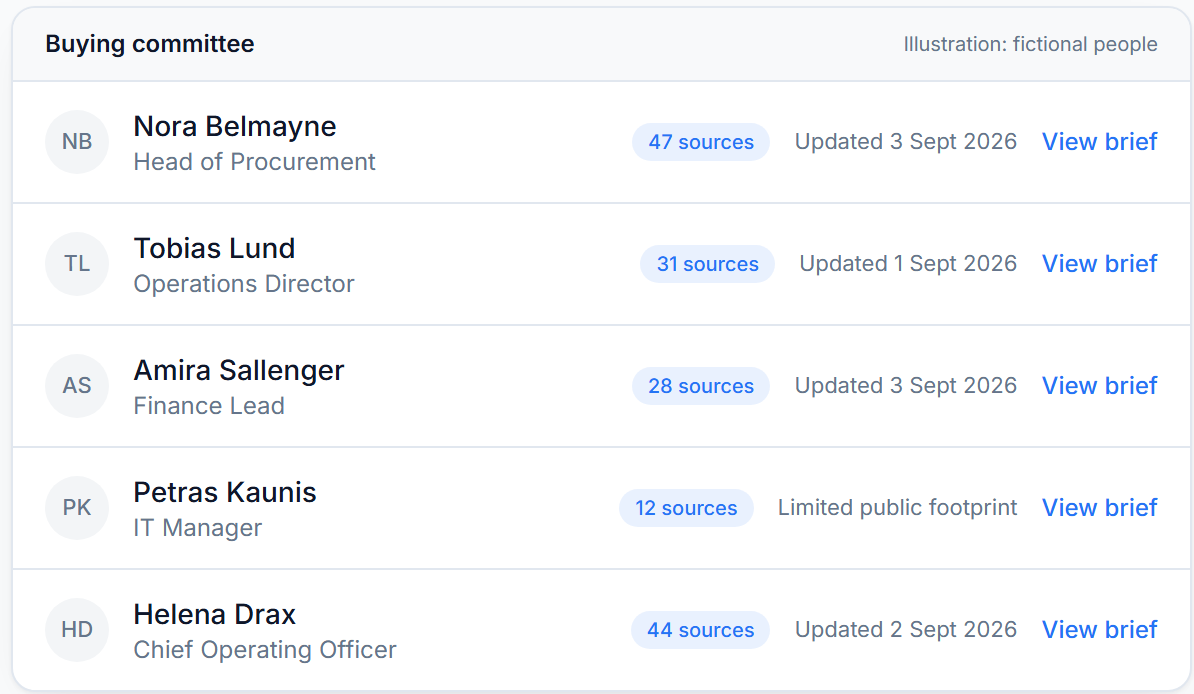
The map shows you who's involved in the deal, and the template shows what you've learned. The facts and sources columns are too slow to fill in manually: opening profiles, reading posts, scanning the news, recording dates. That's where WhiteBridge comes in. WhiteBridge is a panel on Lead, Contact and Opportunity record pages, and on an Opportunity the rep can generate a brief on each member of the buying committee, one at a time, with individual sources and dates.
From the record, where name, work email, and profile are pre-populated, WhiteBridge displays similar profiles across networks and the rep verifies it is the correct person, avoiding the namesake scenario. The 3 to 5 minute report saves itself to the record so the rep can close the tab while it runs. Each report states the number of public sources checked and where someone may have a small online footprint it appears as limited public footprint.
- 1Pick a person on the mapStart with the rows still marked as assumed.
- 2Confirm the right profileFields come from the record; the rep picks the matching person.
- 3Read the briefReady in 3 to 5 minutes and saved to the record.
- 4Update the templateOne fact with its source, one question, the next conversation.
Inserting the brief into the template is fast. Copy one fact with its source from About Them into the fact column, make a point from Persuasion Tactics into the question, and take an Icebreaker for the first line of the next conversation. For the complete routine to research people before a meeting, see our meeting prep guide. WhiteBridge relies on people you already know about from the record; it doesn't add new stakeholders or fill out the map.
A good rule of thumb is to begin with the assumed rows. With the example, Amira and Helena are the most vulnerable points on the map, so a brief on each of them prior to the next meeting provides the rep with facts to test and a stronger question to ask. The people you're familiar with can wait until their role or the deal stage changes.
Common mistakes
Most relationship maps fall into the same handful of traps. It is not the tool that is wrong; it is what the team records and how soon they revisit the map.
- Thinking the map is done once there's a name in every box. A complete map with ambiguous roles is the team's worst enemy.
- Copying job titles into roles. Titles give a position but do not provide an assessment as to whether that person is a reviewer, approver, or blocker of the deal.
- Mapping only those who reply. Silent stakeholders, often those in finance and IT, show up late with an unanticipated objection.
- Holding facts without a source or a date. A post from a year ago may not be a reflection of how someone feels now, or who they work for.
- Relying on a tool to build the map for you. Automatic Contact Enhancements can infer seniority and department from email activity, but you still have to talk to people to understand their role and influence.
- Researching everyone and never talking to a single person. A brief is worth requesting when you're going to talk to that person.
Questions
Does Salesforce have a built-in relationship map?
Yes. The Buyer Relationship Map is enabled for the supported editions by default. Contacts appear only when they have a Seniority Level and Department Group, and up to 1,000 contacts are shown in the map. The map isn't available in the Salesforce mobile app or for person accounts.
Does WhiteBridge create a relationship map?
No. WhiteBridge is a one-person-at-a-time tool that responds whenever a specific user requests it. No background processing takes place. The map stays in Salesforce or in the map app your team already uses.
What is the difference between contact roles and account contact relationships?
An Opportunity Contact Role records the part a person plays in one deal, with a Role and a Primary flag. An account contact relationship links a contact to accounts other than their primary account and comes with Contacts to Multiple Accounts.
Can I use the template without Buyer Relationship Map?
Yes. Only the list of people on the account or the opportunity is required in the template. Teams on other editions can generate it from Opportunity Contact Roles and the contact hierarchy, or from the org chart app they already have.
Prepare the people on your map
Leverage the map within Salesforce and attach a sourced brief for the most influential folks on the deal. WhiteBridge for Salesforce investigates one individual at a time from the record, attaches the brief to it, and works beside the mapping tools you already use. The first 10 briefs are free with every plan.