Salesforce Contact Roles
Use Opportunity Contact Roles to prepare for the people in your deal
Opportunity Contact Roles are the Salesforce feature on an opportunity that tells you the people involved in a deal and their role. This guide explains what Salesforce contact roles are, provides an example setup using fictional records and shows how to keep the contact role stored in the CRM apart from what research says about each person beforehand.
What Contact Roles are for
Salesforce Help describes opportunity contact roles as the way to specify the part that each contact plays in a deal, so the sales team knows who to contact and when. They answer a question the account record alone cannot: of all the people at the customer, which ones are involved in this specific deal. A contact role record links one contact to one opportunity and adds a Role picklist, which your admin can customize, and a Primary checkbox. Each opportunity has only one primary contact.
This sample from Salesforce Help is simple. At AW Computing, one evaluator reviews each proposal before passing it on to a peer for a final decision, so the rep identifies the first as Evaluator and the second as Decision Maker and can immediately see whom to approach first. Contact roles are available on opportunities, contracts, and cases in Lightning Experience. Each object is configured independently, and the same contact can fill different roles on different opportunities. With maintenance, the related list becomes the obvious focus of meeting preparation.
- Account
- Example Logistics Group
- Stage
- Proposal
- Primary contact
- Tobias Lund (Decision Maker)
- Evaluators
- Nora Belmayne, Petras Kaunis
- Executive Sponsor
- Helena Drax
- No role yet
- Amira Sallenger
 WhiteBridgeShared credits
We checked 31 publicly available data sources
Setting up Contact Roles and using them on a deal
Setup is with the admin and is brief. As per Salesforce Help, enter Contact Roles in the Quick Find box in Setup, choose the contact roles to set up and edit picklist values for them; include new values and assign them colors to use in charts. Then include the Contact Roles related list on opportunity page layouts your reps use. In Lightning Experience, the Opportunity Contact Role object in Object Manager also accepts custom fields (up to 100), buttons, validation rules, and triggers.
Here's what it looks like using synthetic data. Example Logistics Group is a fictional account with an open opportunity called Fleet planning rollout. The rep opens the opportunity and clicks Add Contact Roles from the Contact Roles related list. The Add Contact Roles window lists all the account's contacts, so they show up without a search: Nora Belmayne, Tobias Lund, Amira Sallenger, Petras Kaunis and Helena Drax. The rep works their way through 4 steps.
- Select a role from the dropdown next to each contact. Tobias is Decision Maker, Nora and Petras are Evaluator, and Helena is Executive Sponsor - each one is one of the values the admin left in the picklist.
- Leave a role blank when you're unsure. Salesforce will still add the contact to the related list so Amira remains on the deal without a guess as to her role until the rep figures it out.
- Identify a primary contact. The rep chooses Tobias because he manages the customer project and there can be only one primary contact for an opportunity.
- Save your changes. The opportunity contact roles related list now displays a list of names, with each name's role and the primary flag. Salesforce allows you to save up to 200 opportunity contact roles at once.
- 1Admin: edit the Role picklistSetup, Quick Find: Contact Roles
- 2Admin: add the related listContact Roles on opportunity page layouts
- 3Rep: Add Contact RolesAccount contacts are listed automatically
- 4Rep: pick roles, mark one primaryLeave a role empty if unknown
- 5Rep: saveUp to 200 contact roles at a time
Two details in this documentation prevent headache down the road. When a lead is converted and creates both contact and opportunity, the contact is set on the opportunity as a contact role. When you create an opportunity from a contact page that contact becomes the primary contact on the opportunity but no role is selected so someone needs to pick one. The Help pages we looked at didn't mention a native configuration that sets a role as required so check with your admin to see how your org does it.
A buying committee example
Contact Roles show you who is involved in the deal and what your CRM says about them. They don't tell you how people think, and these should be separate. The role in Salesforce is a fact your team typed in and confirmed. Anything you hear from research is an assumption until someone tells you in conversation. The table compares the fictional Fleet planning rollout committee with both types of information.
| Person (fictional) | Role in Salesforce | What public research suggests | Confidence and source |
|---|---|---|---|
| Tobias Lund, Operations Director | Decision Maker, Primary | Talks about planning accuracy and driver schedules | Medium: brief with 31 sources, conference talk |
| Nora Belmayne, Head of Procurement | Evaluator | Compares vendors on references and rollout plans | High: brief with 47 sources, posts and interviews |
| Petras Kaunis, IT Manager | Evaluator | Likely to check integration and security; little public material | Low: brief with 12 sources, limited public footprint |
| Amira Sallenger, Finance Lead | No role selected yet | Writes about cost control and payback periods | Medium: brief with 28 sources, published articles |
| Helena Drax, COO | Executive Sponsor | Has spoken about consolidating suppliers | Medium: brief with 44 sources, interview |
Look across the rows and the gaps become clear. Amira has no role in Salesforce, yet research suggests she'll be looking at the cost case, so reps can verify her involvement in the decision instead of just taking a stab at a label. Petras doesn't have much of a public footprint, so the row remains slim and uncertain. None of that research belongs in the Role field until a conversation confirms it.
Maintain one guideline to keep your record clean. Salesforce fields contain what customers have told you, and briefs contain data from public sources. If a call confirms an assumption, say Amira supports the case for payment, then the rep adds her role to the related list and records the date. If it disproves the assumption, the rep drops the assumption and CRM remains unchanged.
After the committee is listed you get to think about how they are connected: who reports to who, who influences the decision and who was involved in the last vendor selection. This is another process, explained in our guide to Salesforce relationship mapping. Contact Roles show you which names you have, mapping shows the lines between them.
Researching contacts before the call
If someone is already on the opportunity, research is the next step. Having WhiteBridge on the Opportunity record allows the rep to compile a brief for each buyer on the committee, each person in turn, and every brief has sources and a date. The names, work email, and any public profile link are pre-filled from the record, and the rep makes sure the right profile matches prior to beginning the brief so that no namesake makes it into it.
A brief takes 3 to 5 minutes and saves itself to the record so that the rep can close the tab and return to it later. There are 4 sections: About Them explains career history and role, Icebreakers emerge from recent public action, Persuasion Tactics illustrate how the individual evaluates proposals, and Personality Insights reveal noticed tendencies with sources. For Petras, the brief would state that his footprint is sparse rather than fill it in.
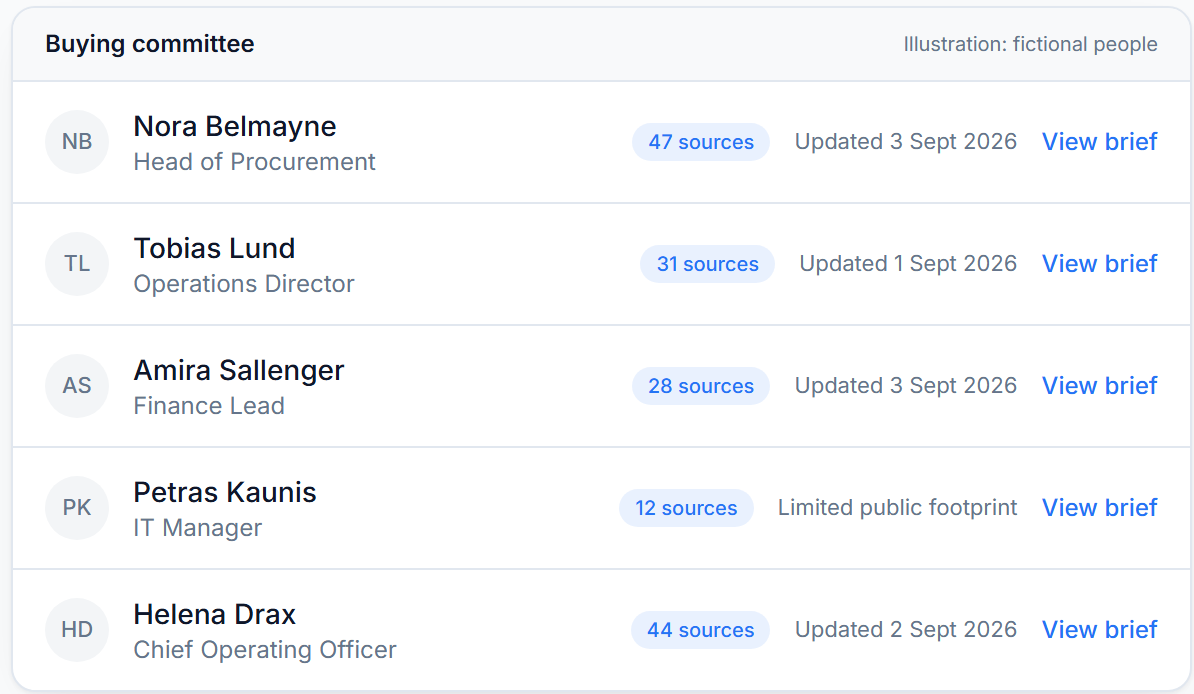
Prepare for the call using the briefs: who's on the call and what should you bring up with them, what to ask Amira about her side of the story, which hypothesis from the research should be tested first. Each brief is requested by a named user and entered into the system and WhiteBridge is only given the name, work email and any public profile link held on the record. For a detailed breakdown of this routine, see how to prepare for your next sales meeting from a Salesforce record.
Mistakes to avoid
The majority of mistakes made with Contact Roles are tiny. Reps add contacts with no roles and don't return, fill roles from job titles, or set the primary contact to the first person who filled in the form. A variant is copying a research hunch into the Role field because it sounds right. Don't make the picklist too long or contentious and clean up roles when the opportunity's stage changes, as Salesforce Help says to edit and delete roles as contacts change.
Another mistake is to assume the list is exhaustive. WhiteBridge does not identify every decision maker on a deal by itself. It researches the contacts your team has already identified, one by one, and it remains the decision of the rep and the account team who gets on the list. If the research throws a new name out there, take it to your champion.
Questions
Can one contact have different roles?
Yes. As Salesforce Help notes, a contact can be listed on a number of different records with different contact roles. A buyer might be an Evaluator in one opportunity and a Decision Maker on another, and each opportunity has only one primary contact.
What happens to roles when contacts are merged?
Contact roles on the non-master contacts lose their primary status, and duplicate roles on the same opportunity are not merged, so check the primary contact after any merge.
How is WhiteBridge priced?
Plans have a single credit pool for the whole org, and no per-seat licences. Pilot is $120 per month for 50 briefs, Professional is $299 for 140, and Enterprise is $470 for 230, and get a 20% discount if you pay yearly. The first 10 briefs are free, and failed generations are never charged.
Research the people already on your deal
If your team maintains Contact Roles, your committee is in one place. WhiteBridge for Salesforce adds a sourced brief on each of those people, one at a time, saved on the record. Book a demo to see it on an Opportunity.